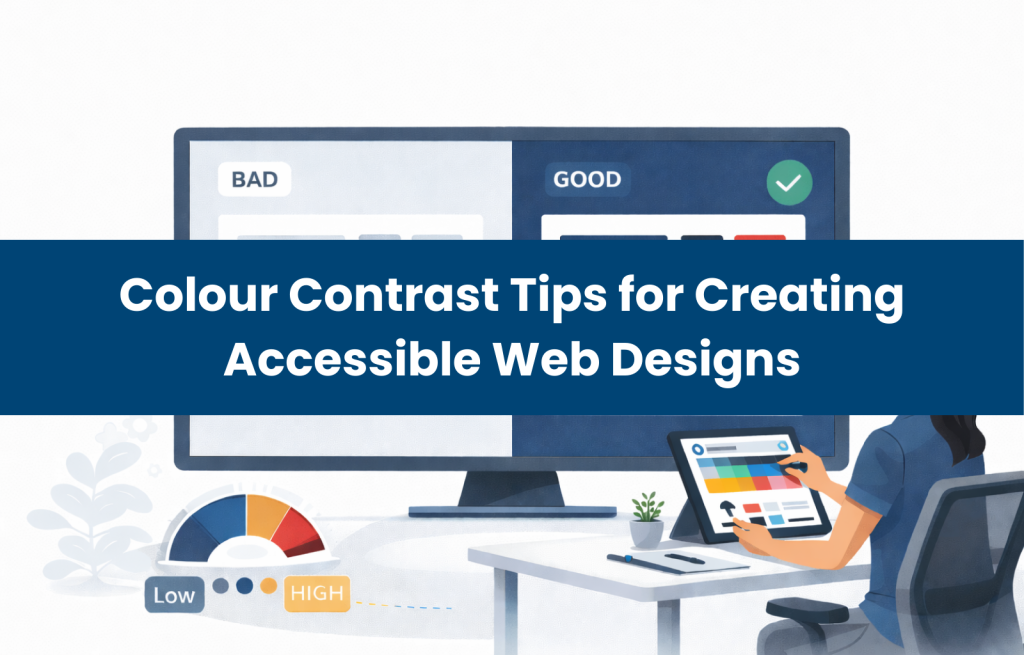
Colour contrast refers to how much the foreground (such as text) stands out from the background behind it. Strong contrast makes content readable and easy to understand. Poor contrast makes text blend into the background, creating barriers for many users, especially people with low vision, colour blindness, or cognitive processing challenges.
This guide explains what colour contrast is, why it matters for accessibility, and how to meet WCAG 2.2 contrast standards using practical, easy-to-apply techniques.
The Role of Colour Contrast in Visual Communication
Colour contrast helps users identify important information, scan content quickly, and understand hierarchy. The more contrast between text and background, the easier it is to read.
Good Contrast Example
Dark blue text (#0A1A2F) on a white background (#FFFFFF) → clear and readable.
Poor Contrast Example
Light grey text (#CFCFCF) on a light grey background (#F2F2F2) → difficult to read, fails WCAG SC 1.4.3 Contrast (Minimum).
Good contrast improves comprehension for all users — not just for those with disabilities.
Why Colour Contrast Matters for Accessibility
People experience colour differently. Some users have:
- Low vision
- Age-related contrast sensitivity loss
- Colour blindness (red–green, blue–yellow, or total)
- Reading or cognitive challenges
Weak contrast can make content unreadable, forcing users to zoom excessively, highlight text manually, or abandon the task entirely. Even users without disabilities encounter readability issues when:
- Using mobile devices outdoors
- Viewing screens in dim or bright lighting
- Reading small text or thin fonts
Colour contrast supports equitable access for everyone, regardless of vision or environment.
Understanding WCAG Colour Contrast Standards
The Web Content Accessibility Guidelines (WCAG 2.2) outline the minimum contrast ratios required for accessibility.
WCAG Contrast Requirements
| Text Type | Requirement | WCAG Success Criterion |
| Normal Text | 4.5:1 | SC 1.4.3 |
| Large Text (18pt or 14pt bold) | 3:1 | SC 1.4.3 |
| UI components & icons | 3:1 | SC 1.4.11 |
| Enhanced readability | 7:1 recommended | SC 1.4.6 |
Why these ratios matter
A contrast ratio of 4.5:1 helps users distinguish letters, shapes, and symbols from the background, improving readability for a broad range of users.
Common Colour Contrast Mistakes Designers Make
Design contrast issues often occur because of branding choices, aesthetic trends, or rushed production cycles.
Common failures include:
- Light text on light backgrounds
- Dark text on dark backgrounds
- Using colour alone to convey meaning (fails WCAG SC 1.4.1)
- Thin or ultra-light fonts that reduce perceived contrast
- Text over busy images or gradients
- Low-contrast buttons that appear disabled
- Pastel text colours that blend into the background
These issues are easy to fix once identified. Many of them are addressed during a structured web accessibility remediation process.
Best Practices for Improving Colour Contrast
Here are practical ways to meet WCAG contrast requirements:
Choose darker text colours
Dark text generally pairs well with light backgrounds.
Add background boxes or overlays
A semi-transparent overlay can dramatically improve readability.
Tip: If using transparency, ensure you test composited colours, not just flat hex values. WCAG SC 1.4.3 applies to the resulting blend.
Increase font size or weight
Larger and bolder text often meets contrast ratios more easily.
Don’t use colour alone to show meaning
Pair colour with icons or labels.
Test early in the design process
Teams can also improve their skills through web accessibility training to avoid contrast problems in future projects.
Colour Contrast for Dark Mode and Light Mode
Dark mode and light mode each require separate contrast testing.
Dark Mode Tips
- Use soft light text (#F1F1F1) on dark backgrounds (#1A1A1A)
- Avoid pure white (#FFFFFF) on pure black (#000000), causes glare and eye strain
- Ensure text still meets the 4.5:1 ratio
Light Mode Tips
- Dark text (#0A0A0A) on white or near-white backgrounds works best
- Avoid light pastels for text
Designers must test both modes to ensure compatibility and comfort.
Tools to Check Colour Contrast (Trusted Tools List)
Here are reliable tools for meeting WCAG 2.2 requirements:
WebAIM Contrast Checker
Quick ratio checks and pass/fail indicators.
TPGi Colour Contrast Analyzer (CCA)
Great for testing composited layers and transparency.
Axe DevTools
Runs automated accessibility scans, including contrast failures.
WAVE Web Accessibility Tool
Identifies colour contrast issues directly on the page.
Coblis – Color Blindness Simulator
Helps designers preview content for different types of colour blindness.
These tools support compliance with WCAG SC 1.4.3, 1.4.6, and 1.4.11.
Colour Contrast in Different Contexts
Contrast standards apply everywhere, not just to text in paragraphs.
Websites & Apps
- Navigation menus
- Buttons and icons
- Forms and input fields
Graphics & Infographics
Labels must be readable even in small sizes.
PDFs & Documents
Many accessibility failures stem from low-contrast text.
Video Content
On-screen text like captions or overlays must meet WCAG contrast ratios (SC 1.4.3).
Design for accessibility wherever text appears. If you run into issues in PDFs or graphics, these can also be corrected through web accessibility remediation.
How to Fix Colour Contrast Issues Quickly
Here are fast fixes you can apply immediately:
- Darken the text colour or lighten the background
- Increase font size or thickness
- Add a high-contrast overlay behind text
- Pick a more contrasting colour pair
- Adjust saturation/brightness levels
- Remove busy backgrounds behind text
- Use a reliable web contrast checker to verify fixes
Small visual changes can dramatically improve readability.
Conclusion
Good colour contrast is essential for clear, accessible, and user-friendly design. Whether you’re building a website, designing an app, or creating digital graphics, contrast determines how well users can read and understand your content.
When in doubt, test it. Strong contrast supports WCAG compliance, enhances user experience, and ensures your content works for everyone. For organizations needing expert guidance, our web accessibility training and remediation services can support long-term accessibility improvements.
FAQs About Colour Contrast
Is colour contrast important for websites?
Yes, it improves readability, usability, and accessibility.
What is the minimum WCAG colour contrast ratio?
4.5:1 for normal text and 3:1 for large text or icons.
How do I check colour contrast for my design?
Use tools like WebAIM, TPGi CCA, Axe DevTools, or WAVE.
How do I fix poor colour contrast on my website?
Darken text, lighten backgrounds, adjust hue, or increase font weight.
Does colour contrast affect users without disabilities?
Absolutely. Everyone benefits from readable, high-contrast design.
Is high colour contrast always better?
No. Extremely high contrast (like pure black and white) can be uncomfortable, aim for clarity without strain.
What is the difference between colour contrast in dark mode and light mode?
Dark mode benefits from softer light colours on dark backgrounds. Light mode typically uses dark text on light backgrounds. Both must meet WCAG 2.2 contrast requirements.